

To host your documentation on a custom domain:Documentation Index
Fetch the complete documentation index at: https://mintlify-mintlify-233ace88.mintlify.app/llms.txt
Use this file to discover all available pages before exploring further.
- Add your domain in your dashboard.
- Configure DNS settings on your domain provider.
- Allow time for DNS to propagate and TLS certificates to be automatically provisioned.
Looking to set up a subpath like
example.com/docs? See /docs subpath.Add your custom domain
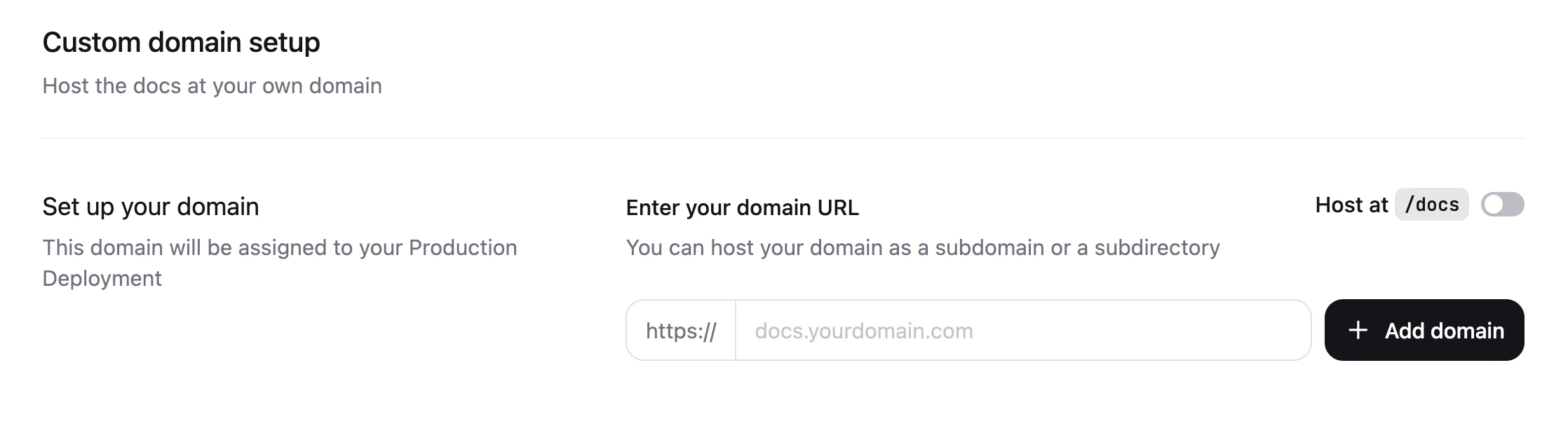
- Navigate to the Custom domain setup page in your dashboard.
- Enter your domain name. For example,
docs.example.comorwww.example.com. - Click Add domain.
Configure your DNS
- On your domain provider’s website, navigate to your domain’s DNS settings.
- Create a new DNS record with the following values:
Verification TXT records
After you add a custom domain, the dashboard displays twoTXT records that you must add at your DNS provider:
_acme-challenge record authorizes Let’s Encrypt to issue a TLS certificate for your domain, and the _cf-custom-hostname record verifies that you control the domain.
The dashboard automatically checks these records and marks each one as configured once it detects the expected value in DNS. Refresh the page after publishing the records to update their status.
DNS propagation
DNS changes typically take 1-24 hours to propagate globally, though it can take up to 48 hours in some cases. You can verify your DNS is configured correctly using DNSChecker. Once your DNS records are active, your documentation is first accessible via HTTP. HTTPS is available after your TLS certificate is provisioned.Automatic TLS provisioning
Once your DNS records propagate and the verificationTXT records resolve correctly, Mintlify automatically provisions a free SSL/TLS certificate for your domain using Let’s Encrypt.
This typically completes within a few hours of DNS propagation, though it can take up to 24 hours in rare cases. Certificates are automatically renewed before expiration.
CAA records
If your domain uses CAA (Certification Authority Authorization) records, you must authorize Let’s Encrypt to issue certificates for your domain. Add the following CAA record to your DNS settings:Reserved paths
The/.well-known/acme-challenge path is reserved for certificate validation and cannot be redirected or rewritten. If you have configured redirects or rewrites for this path, certificate provisioning fails.
Provider-specific settings
Cloudflare encryption mode
Cloudflare encryption mode
If Cloudflare is your DNS provider, you must enable the “Full (strict)” mode for the SSL/TLS encryption setting. Additionally, disable “Always Use HTTPS” in your Edge Certificates settings. Cloudflare’s HTTPS redirect blocks Let’s Encrypt from validating your domain during certificate provisioning.
Set a canonical URL
After configuring your DNS, set a canonical URL to ensure search engines index your preferred domain. A canonical URL tells search engines which version of your documentation is the primary one. This improves SEO when your documentation is accessible from multiple URLs and prevents issues with duplicate content. Add thecanonical meta tag to your docs.json:
https://www.your-custom-domain-here.com with your actual custom domain. For example, if your custom domain is docs.mintlify.com, you would use: